Exodus troubleshooting
Find your error message below. The list on the right jumps to it. These cover the Exodus products.
Failed to init spoofer
Use the other HWID Virtualizer option in the loader.
Low FPS with Medal Overlay
Turn off "Capture Clips" in Medal's "Clip Settings" tab.
Overlay/ESP off center
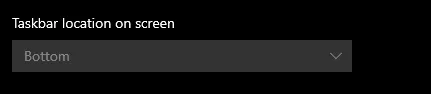
Unlock your taskbar and drag it to the bottom of the screen. Then press your overlay key once to move the overlay into place.
Loader is empty and does not load
Turn off any antivirus and any anti-cheat, such as Vanguard or FACEIT.
Failed to repair Hyper-V files automatically
The loader could not repair the Hyper-V files. Make sure you are not using a custom or "optimized" version of Windows.
Please manually disable Hyper-V using dgreadiness tool
This also fixes the error "Failed to create a restore point to perform a safe Hyper-V disabling".
- Make sure your PIN, password and any other Windows sign-in security is turned off.
- Download the Device Guard and Credential Guard hardware readiness tool from Microsoft and extract the zip.
- Open PowerShell as administrator and run:
Set-ExecutionPolicy Unrestricted -Scope Process
-
In the same window, go to the folder you extracted. Type
cd, a space, then the path of that folder, and press Enter. -
Run the script to disable Device Guard and Credential Guard:
.\DG_Readiness_Tool_v3.6.ps1 -Disable
- Restart your PC. If a screen asks you to confirm, press F3.
Loader restarts PC more than 3 times
Same fix as Please manually disable Hyper-V using dgreadiness tool.
Please make sure PIN is not set in Windows sign-in options
Same fix as Please manually disable Hyper-V using dgreadiness tool.
Failed to download font-7
Restart your PC and try again, a few times. If that does not help, try a VPN. If it still fails, contact support.
Loader crashing in 1-3 seconds after launching
Install VC_Redist, then restart your PC. Do this even if you already have it. If the loader closes by itself and the servers are up, installing or reinstalling VC_Redist is the fix.
Unknown error while disabling HyperV
Download Disabler.rar, extract all the files into one folder, and run run_disable_and_backup as administrator.
Failed to set value
Unsupported firmware
Convert the disk that holds Windows to GPT, using the built-in Windows tool mbr2gpt or any disk tool you like.
CRITICAL_PROCESS_DIED [BSOD]
Do not close the loader until the product has finished downloading and loading.
Mapper error
Move to a newer or older Windows version or build. If that does not help, use an original version of Windows.
Failed to download files(1)
Try again, or update Windows.
No available servers were found
The servers may be under maintenance, so contact support. Otherwise use a VPN.
Either virtual or RAID disk is present
- Turn off virtual disks or RAID in the BIOS, and disable Intel Rapid Storage Technology (RST) if you have it.
- If that does not fix it, use DriverView or ProcessHacker to find the drivers and services whose names start with "iaStor", and disable them.
- If none of that helps, try reinstalling Windows.
Advanced fix
- If Windows was installed on RAID/IRST, read this article to turn it off as safely as possible.
- If IRST/RAID is already off, disable every driver and service that starts with "iaStor". This article has more detail.
If RAID and Intel Rapid Storage are already disabled, follow the last steps under Please disable Intel Rapid Storage Technology.
Failed to map/allocate memory
- Make sure your PC has 16 GB of RAM or more.
- Disable everything in Task Manager, Startup. Restart the PC and try again.
- Make sure the loader is on your PC and not in cloud storage (for example OneDrive or Mega.nz).
- Download AutoRuns and disable everything under Microsoft/Windows/CurrentVersion/Run. Do not touch anything else. Save the changes and restart your PC.
If none of that worked, the problem is on your side. Try launching the product right after Windows starts. If even that does not help, your Windows install is broken.
Incorrect HWID
Open CMD as administrator and run these one at a time:
wmic diskdrive get Caption, SerialNumber
wmic baseboard get SerialNumber
getmac
If Windows says "wmic" is not recognized, your PC is fine: Windows 11 24H2 and later no longer include that tool. Contact support instead. If any of them fails with any other error, something is wrong with your PC. Try reinstalling Windows and check whether the problem is gone.
Failed to spoof hardware identifier(0x4)
Reboot your PC and try again. If that does not help, something else is already spoofing your hardware identifiers. Find it and turn it off.
Incompatible HWID
HWID check error or HWID mismatch. Restart Windows and try again. If that does not work, contact support and ask for an HWID reset.
Failed to load dependencies
Turn off or remove your antivirus and any FACEIT or Vanguard anti-cheat. Restart your PC and launch the product again.
Please enable AMD-V (SVM) in BIOS
Enable AMD SVM in the BIOS.
Please enable Intel VT-X in the BIOS
Enable Intel VT-X in the BIOS.
VT-x/VMX/SVM is not supported
- Run PowerShell as administrator and run:
Set-ExecutionPolicy RemoteSigned
- Restart your PC.
- Download this PowerShell file and open it as text.
- Run PowerShell as administrator and enter the commands from the file one at a time.
- Restart your PC.
Error 0x302
Restart your PC and try again.
SPACES disk is present
Turn off Microsoft Storage Spaces in Control Panel, Storage Spaces. This may wipe all data on that disk.
Please disable Intel Rapid Storage Technology
Read this article to turn off RAID/IRST.
If IRST/RAID is already off, use DriverView or ProcessHacker to find every driver and service that starts with "iaStor", and disable them. This article has more detail.
If RAID and Intel Rapid Storage are already disabled, swap the Intel driver for the standard Windows one:
- Open Device Manager and expand "IDE ATA/ATAPI Controllers".
- Right-click the Intel SATA AHCI Controller and choose "Update driver".
- Choose "Browse my Computer", then "Let me pick".
- Select "Standard SATA AHCI Controller", which shows as compatible.
- Click "Continue".
If that did not help, make a restore point first, then:
- In Device Manager, under "IDE ATA/ATAPI controllers", double-click your Intel SATA AHCI Controller.
- On the Driver tab, choose Uninstall. Restart the PC.
- Back in Device Manager, check that the entry now reads "Standard SATA AHCI Controller".
- Download and install DriverView, and sort it by Driver Name. If none of iaStor.sys, iaStorA.sys, iaStorF.sys, iaStorS.sys or iastorv.sys is listed, you are done.
- If one is listed: in Device Manager choose View, Show hidden devices, open "Non-plug and play Drivers", right-click the Intel Rapid Storage Technology driver, choose Properties, and on the Driver tab set Startup to Disabled. Restart the PC.
Black Screen once in a while (Delta Force/ABI)
Update Windows to the very latest build.
Failed to delete hvax.exe(1)
Turn off SVM/VT-X/VT-D in the BIOS, then delete or rename the file hvax64 by hand. Turn SVM/VT-X/VT-D back on afterwards.
Failed to init render
Disable integrated graphics in the BIOS if you use the Delta Force, PUBG or ABI products. If you do not have integrated graphics and do not use one of those products, go back through the overlay and setup steps.
Please unload a third-party hypervisor
Restart your PC. If that does not help, remove anything that uses a hypervisor.
Please enable AHCI disk mode in BIOS
Switch the disk mode to AHCI in the BIOS. Turn off IDE, RAID or any other mode.
AES instruction set is not supported
Your CPU does not support AES instructions, or AES is turned off in the BIOS. Make sure AES is enabled in the BIOS.
R6X ESP does not work or menu does not show up
This is for the Exodus R6 products.
- Press Windows+R and paste this path to find your QB (your
RainbowSix.exe, the exact game build you have installed):
%localappdata%/Ubisoft/r6s
- Upload the
RainbowSix.exefrom that folder to GoFile or LimeWire. - Contact support and share the link.
If the menu does not show up, your overlay settings need fixing. Go through the Medal or Discord overlay steps on the product page again.
If the loading screen appears and you can see the menu and the gadget or ability ESP, but ESP does not show players, set the game settings back to default in Options, Gameplay, General. Apply, restart your PC and try again.
Never test anything in DM/TDM or with bots of any kind.
R6X Specific Error Codes [QB]
This is for the Exodus R6 products. It covers these error codes: 21076, 25234, 17685, 37713, 48525, 91341 and 25135.
Same fix as R6X ESP does not work or menu does not show up.
Blue screen/Black screen of death [BSOD]
- Find the file
MEMORY.DMPinC:\Windows. It must be exactly that file and nothing else. - Archive it and upload it to GoFile or LimeWire.
- Contact support and share the link.
Environment Error
You have a custom mouse driver. Use the default mouse driver only.
Failed to call EntryPoint
Retry until the error no longer appears.
Required module is not present
Retry until the error no longer appears. You may need to restart your PC.